3. Packages Lesson
Java Packages
Java Packages
To see sample solutions, click on the "Configure activity" button and select "Show solutions" from the menu that appears.
Sample solutions not included, because "Show solutions" was not selected before printing.
Lesson Objectives
This lesson is designed to provide further practice with command-line text editors as well as compiling Java code organized into packages on a Unix system.
Prerequisites
Course-Specific Learning Outcomes
LO1.a: Navigate and modify files, directories, and permissions in a multi-user Unix-like environment.
LO1.c: Create and modify text files and source code using a powerful terminal-based text editor such as Emacs or Vi.
LO1.d: (Partial) Use shell commands to compile new and existing software solutions that are organized into multi-level packages and have external dependencies.
Note
Solutions to the coding parts of this lesson are provided if you toggle "Show Solutions" above. Students are encouraged to review the text/videos in the Packages Chapter for instructions on how to properly create packages directories and details on compilation commands.
Part 1: Compiling to Default Package
Download Starter Code
Use the following command to download the starter code for this activity and place it into a subdirectory named
cs1302-hello:bundle1302 hello- downloading cs1302-hello bundle... - verifying integrity of downloaded files using sha256sum... - extracting downloaded archive... - removing intermediate files... subdirectory cs1302-hello successfully created
Compile Hello.java to Default Package
Navigate to the
srcdirectory.From
src, compileHello.javaDon't use the-doption forjavacin this step.Write on exit ticket: What command did you run? What happened when you executed that command? Be as detailed as possible.
Run Hello from src directory
Verify you are still in the
srcdirectory.From
src, execute the program.Write on exit ticket: What command did you run? What happened when you executed that command? Be as detailed as possible.
Remove a file when Outside its Directory
Navigate to the
cs1302-hellodirectory.Execute the
treecommand from inside ofcs1302-hellodirectory. You should see output similar to this:tree
. `-- src |-- Hello.class `-- Hello.java
Pro Tip
Unless it is specifically stated, it is best to always work from the main project directory. For example, while working on the source code for this exercise, you can modify all of the files without leaving the
cs1302-hellodirectory by providing the relative path (using tab completion) to the file from thecs1302-hellodirectory. This means you would rarely use the cd command while working on an assignment. When Unix beginners overuse thecdcommand, they often find themselves lost in the directory structure which can lead to mistakes and, in rare cases, frustration.Write on exit ticket: From
cs1302-hello, what is the command to delete the compiled (.class) file fromsrc.
Getting Organized
For better organization, let's separate the source code from the compiled code. Directly inside the
cs1302-hellodirectory, add a subdirectory calledbin.From within
cs1302-hello, execute a single command to compileHello.javaand place the compiled code into thebindirectory? When typing the command, remember to use tab completion. Do not use the cd command.Tricky: In your groups: try to execute the
Helloprogram fromcs1302-hello. Write the command you used in your notes.Execute the
treecommand from directly within yourcs1302-hellodirectory. If the previous steps were executed correctly, you should see the following output:tree
. |-- bin | `-- Hello.class `-- src `-- Hello.java
Note: If you see any tilde (~) files, those are just backup copies of older versions of your files. You can ignore those.
Write on exit ticket: What command did your group run to compile
Hello.javaand place the compiled code into thebindirectory without using the cd command?
Part 2: Test Yourself
Start in your home directory. Verify the files are organized like this:
cd
tree
.
`-- cs1302-hello
|-- bin
| `-- Hello.class
`-- src
`-- Hello.java
Run from your Home Directory
Write on exit ticket: From your home directory (not
cs1302-hello), what is the single command to run the
Hello program?
Solution
java -cp cs1302-hello/bin Hello
Delete from your Home Directory
Write on exit ticket: From your home directory, what is the
command to delete the Hello.class file from the bin
folder?
Solution
rm cs1302-hello/bin/Hello.class
tree
.
`-- cs1302-hello
|-- bin
`-- src
`-- Hello.java
tree cs1302-hello
cs1302-hello
|-- bin
`-- src
`-- Hello.java
cd cs1302-hello
tree
.
|-- bin
`-- src
`-- Hello.java
Prepare for Part 3
Starter Code
bundle1302 hello
- downloading cs1302-hello bundle...
- verifying integrity of downloaded files using sha256sum...
- extracting downloaded archive...
- removing intermediate files...
subdirectory cs1302-hello successfully created
Change to the
cs1302-hellodirectory.Execute the
treecommand. You should see output similar to the following:tree
.
|-- bin
`-- src
    `-- Hello.java
Adjust the files/subdirectories within
cs1302-hellousing the appropriate Unix commands, to look like the following:tree
. |-- bin `-- src `-- cs1302 `-- example `-- Hello.java
Part 3: Compiling to Named Package
Starter Code
bundle1302 hello
- downloading cs1302-hello bundle...
- verifying integrity of downloaded files using sha256sum...
- extracting downloaded archive...
- removing intermediate files...
subdirectory cs1302-hello successfully created
Introduction
In large projects, code is organized into named packages similar to how you might organize your personal photos into subfolders.
To move code into a named package, there are two steps:
Place the
.javafiles into the appropriate package directory (done in previous section)Include an appropriate package statement at the top of each
.javafile (do this now).
Package Directory Setup
Let us assume we want the Hello class to be a member of
the cs1302.example package:
tree
.
|-- bin
`-- src
    `-- Hello.java
cs1302.exampletree
.
|-- bin
`-- src
    `-- cs1302
        `-- example
            `-- Hello.java
In your groups, discuss how to place the current
Hello.javafile into the desired package directory. This will likely involve more than one command. After coming to a consensus, perform the command(s) to make the necessary change(s).On your exit ticket: Note the commands that you used and why.
Package Statement Preparation
Here is the same "before and after" shown in the previous section:
tree
.
|-- bin
`-- src
    `-- Hello.java
cs1302.exampletree
.
|-- bin
`-- src
    `-- cs1302
        `-- example
            `-- Hello.java
On your exit ticket: Discuss and note the implied Fully Qualified Name (FQN) of the
Helloclass both before and after moving it into thecs1302.examplepackage. You should have two FQNs written down when you are done.
Emacs Aside
In the next section, you will be writing code using Emacs in class for the first time. While working through that section, try to incorporate the following keyboard shortcuts and commands:
M-v
C-p
M-b C-b + C-f M-f
C-n
C-v
Open File in Current Buffer: C-x C-f
Minimize / Suspend Emacs: C-z (run within Emacs)
Bring to Foreground: fg (run from terminal)
Adding the Package Statement
Open your
Hello.javafile in emacs.Add the appropriate
packagestatement at the top of the file.Save the file and exit emacs.
On your exit ticket: Write down the complete
packagestatement that you added toHello.javaand the emacs key bindings that you used to save the file and exit emacs.
Compiling Hello.java to a Named Package
In your
cs1302-hellodirectory, theHello.javafile should be located in thesrc/cs1302/exampledirectory and have the correct package statement.Verify your directory structure and package statement using the tree command and the head command as seen below:
tree
.
|-- bin
`-- src
    `-- cs1302
        `-- example
            `-- Hello.java
head src/cs1302/example/Hello.javapackage cs1302.example; ...
Without using the cd command, compile
Hello.javaspecifyingbinas the destination for compiled code (i.e., the default package location for compiled code).On your exit ticket, write the command you used and include notes explaining the purpose of the
-d binpart of the command and how the path toHello.javarelates to the desired directory structure within thebindirectory. You can use the tree command after you compile to whereHello.classends up to justify your reasoning.
Expected Tree Output After Compilation
tree
   .
   |-- bin
   |   `-- cs1302
   |       `-- example
   |           `-- Hello.class
   `-- src
       `-- cs1302
           `-- example
               `-- Hello.java
Solution
javac -d bin src/cs1302/example/Hello.java
Run Hello from cs1302-hello Directory
Now, run the
Helloprogram.Write on exit ticket: What command did you run? What happened when you executed that command? Be as detailed as possible.
Solution
java -cp bin cs1302.example.Hello
Run Hello from Home Directory
Write on exit ticket: From your home directory (not
cs1302-hello), what is the single command to run theHelloprogram?Solution
java -cp cs1302-hello/bin cs1302.example.Hello
Part 4: Code Dependencies
Note
This section requires completion of the first three parts. If you missed class, please find a classmate who has those parts completed.
Starter Code
bundle1302 hello-v2
- downloading cs1302-hello-v2 bundle...
- verifying integrity of downloaded files using sha256sum...
- extracting downloaded archive...
- removing intermediate files...
subdirectory cs1302-hello-v2 successfully created
Adding a Dependency
Navigate to the
cs1302-hello-v2folder if you aren't there already.Add a
cs1302.utilitypackage directory to your hierarchy. Hint: Theutilitydirectory will need to be inside of thecs1302folder.Create a class called
MyMethodsin thecs1302.utilitypackage. The file will need to be namedMyMethods.java.Double check that you typed the class declaration. This class won't need a
mainmethod because it won't be run directly.Add a single, static method called
maxto theMyMethodsclass with the following signature:/** * Returns with the larger of the two input parameters. If the parameters * are equal, either value can be returned. * * @param num1 the first number to check. * @param num2 the second number to check. * @return the larger of the two parameters. */ public static int max(int num1, int num2) { // Your code here } // max
Implement the body of the
maxmethod. The method should determine and return with the bigger of twointvalues supplied as parameters to the method. These values will be supplied when you call the method in a later step. Note: You should not use theScannerclass inside of theMyMethodsclass.Run the tree command. You should see output similar to the following:
tree
.
`-- src
    `-- cs1302
        |-- example
        |   `-- Hello.java
        `-- utility
            `-- MyMethods.java
Compiling MyMethods.java
From
cs1302-hello-v2, compileMyMethods.javaand place the byte code in thebindirectory. Remember, there are no dependencies when compilingMyMethods.java.Solution
javac -d bin src/cs1302/utility/MyMethods.java
Now that you've compiled both
Hello.javaandMyMethods.java, execute tree and look in thebindirectory. Notice the directory hierarchy that was automatically created.
Calling max in Hello.java
Modify the
Helloclass in theHello.javafile to print out the maximum of two values input by the user.Hint
To accomplish this, in the
mainmethod of yourHelloclass, you should read two integers from a validScannerobject and pass those values into themaxmethod you created in theMyMethodsutility class. In other words, you should call themaxmethod inMyMethodsfrom themainmethod in yourHelloclass and print the result.You must import
MyMethodsinHello.java. Why?Solution
public static void main(String[] args) {
    Scanner input = new Scanner(System.in);

    System.out.print("Enter a number: ");
    int num1 = input.nextInt();
    System.out.print("Enter another number: ");
    int num2 = input.nextInt();

    // Use our new max method to find out which is bigger.
    int bigger = MyMethods.max(num1, num2);
    System.out.println(bigger + " is bigger");

} // main
Compiling Hello with Dependencies
Write on exit ticket: What is the command to compile the
Helloclass from thecs1302-hello-v2directory and place the compiled code intobin?Hint
There is now a dependency in
Hello.java. It relies on the code fromMyMethods, so the compiler needs to know where to find that class.Solution
javac -d bin -cp bin src/cs1302/example/Hello.java
Execute the tree command from directly within your
cs1302-hello-v2directory. If the previous steps were executed correctly, you should see the following output:Note: If you see any tilde (~) files, those are just backup copies of older versions of your files. You can ignore those.
tree
.
|-- bin
|   `-- cs1302
|       |-- example
|       |   `-- Hello.class
|       `-- utility
|           `-- MyMethods.class
`-- src
    `-- cs1302
        |-- example
        |   `-- Hello.java
        `-- utility
            `-- MyMethods.java
Running Hello with Dependencies
Write on exit ticket: What is the command to run
Hello?Solution
java -cp bin cs1302.example.Hello
Run your code to make sure everything is working properly. Demonstrate to your instructor if they are available.
Part 5: Designing on Paper (Exit Ticket)
Note
Close your laptops for this section. Work with your group to analyze the class designs and write your code solution by hand on your exit ticket.
Class Diagrams & Problem Description
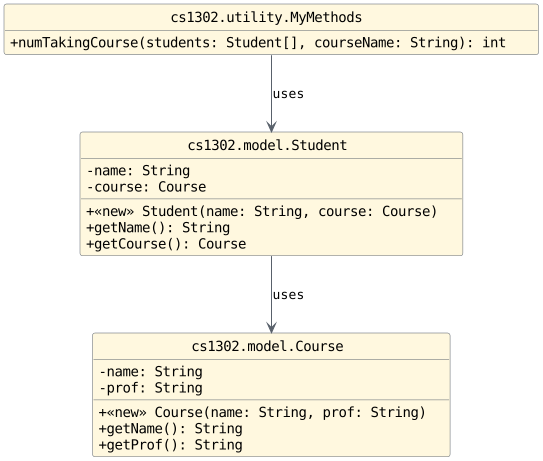
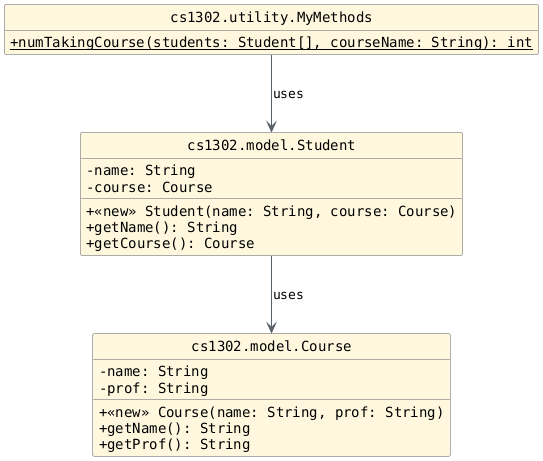
Handwritten Code Implementation
On your exit ticket: Assume the
CourseandStudentclasses provide standard constructors and getter methods as shown in the diagram above.Write out the full implementation for the
numTakingCoursemethod inMyMethods:/** * Counts how many students in the array are currently taking the specified course. * * @param students the array of students to check * @param courseName the name of the course to match * @return the number of students taking the course */ public static int numTakingCourse(Student[] students, String courseName) { // Your handwritten code here } // numTakingCourse
Example Driver in Another Package
 1package cs1302.example;
 2
 3import cs1302.model.Course;
 4import cs1302.model.Student;
 5
 6public class Driver {
 7
 8    public static void main(String[] args) {
 9
10        // Create some courses
11        Course cs1 = new Course("CSCI 1301", "Cotterell");
12        Course cs2 = new Course("CSCI 1302", "Barnes");
13
14        // Create some students
15        Student alice = new Student("Alice", cs1);
16        Student bob = new Student("Bob", cs1);
17        Student charlie = new Student("Charlie", cs2);
18        Student diana = new Student(null, cs2);  // Student with null name
19        Student eve = new Student("Eve", null);  // Student with null course
20
21        // Put them in arrays - some arrays will be null,
22        // some will contain null elements
23        Student[] roster1 = new Student[]{ alice, bob, charlie, diana, eve };
24        Student[] roster2 = null;
25        Student[] roster3 = new Student[]{ alice, bob };
26        Student[] roster4 = new Student[]{ alice, null, bob };
27
28        int num1 = cs1302.utility.MyMethods.numTakingCourse(roster1, course1);
29        int num2 = cs1302.utility.MyMethods.numTakingCourse(roster1, course2);
30        int num3 = cs1302.utility.MyMethods.numTakingCourse(roster1, course3);
31        int num4 = cs1302.utility.MyMethods.numTakingCourse(roster1, course4);
32        int num5 = cs1302.utility.MyMethods.numTakingCourse(roster2, course1);
33        int num6 = cs1302.utility.MyMethods.numTakingCourse(roster3, course1);
34        int num7 = cs1302.utility.MyMethods.numTakingCourse(roster4, course1);
35
36    } // main
37
38} // Driver
Considerations
What if the
studentsarray or thecourseNameparameter isnull?What if an element within the
studentsarray isnull?What if a student has not been assigned a course (i.e.,
s.getCourse()returns withnull)?How should you compare two
Stringobjects for equality in Java?
Solution
public static int numTakingCourse(Student[] students, String courseName) {
    int count = 0;
    if (students == null || courseName == null) {
        return 0;
    } // if
    for (Student s : students) {
        if (s != null && s.getCourse() != null && courseName.equals(s.getCourse().getName())) {
            count++;
        } // if
    } // for
    return count;
} // numTakingCourse
Additional Practice: Named Packages
Additional Practice: Named Packages
To see sample solutions, click on the "Configure activity" button and select "Show solutions" from the menu that appears.
Sample solutions not included, because "Show solutions" was not selected before printing.
Activity Objectives
Learn how to organize code using packages, compile Java programs with proper directory and classpath configurations, and execute them using fully qualified names.
Question: Running a Program
You are working with a file with the relative path:
src/pkg/example/myapp/Welcome.java
which includes the first line:
package pkg.example.myapp;
What is the FQN of the class? After compiling it to the bin/
directory, what command would you use to run it from inside the
project/ folder?
Solution
FQN: pkg.example.myapp.Welcome
Command:
java -cp bin pkg.example.myapp.Welcome
Explanation:
The fully qualified name (FQN) includes the package and class
name. When running from the project/ folder, the
classpath must point to the bin/ directory where the
class was compiled.
Question: Compiling and Running
Consider the following file structure. Assume you are in the
student directory.
student     // you are here
`-- cs1302-packages
    `-- src
        `-- cs1302
            `-- hello
                `-- HelloWorld.java
Without changing directories, what exact command would you type to compile
HelloWorld.javatobinassuming it is in thecs1302.hellopackage and the appropriate package statement is included in the code?Solution
javac -d cs1302-packages/bin cs1302-packages/src/cs1302/hello/HelloWorld.java
Without changing directories, how would you run
HelloWorld?Solution
java -cp cs1302-packages/bin cs1302.hello.HelloWorld
Explanation:
As the file is now compiled, the FQN must match the package and class name, and the classpath must include
cs1302-packages/binto provide a valid path to the compiled class hierarchy.