12. JavaFX Lesson
JavaFX
JavaFX
Lesson Objectives
Motivate and introduce JavaFX for graphical user interfaces.
Part 1: Introduction
Logging into Odin
Remember to log in to Odin using ssh -XYC when
working with graphical user interfaces.
Download the Starter Code
Execute the command below to download and extract the files:
sh -c "$(curl -fsSL https://cs1302book.com/_bundle/cs1302-javafx.sh)"
- downloading cs1302-javafx bundle...
- verifying integrity of downloaded files using sha256sum...
- extracting downloaded archive...
- removing intermediate files...
subdirectory cs1302-javafx successfully created
Change to the cs1302-javafx directory that was created
using and look at the files that were bundled as part of the
starter code using tree. You should see output
similar to the following:
.
├── compile.sh
└── src
    └── cs1302
        └── app
            ├── ImageApp.java
            └── ImageDriver.java
Understanding the Starter Code
The starter code contains a basic template for building a JavaFX application.
In your groups, take a few minutes to explore the starter code and to answer the questions below on your exit tickets:
Do we need the
ImageDriverclass? Explain.What is the parent class of
ImageApp? What does our class inherit?How many inherited methods are overridden in
ImageApp?How many abstract methods are overridden in
ImageApp?What is the
Stageand how does it relate to theScene?
Solutions
We don't have to have the
ImageDriverclass as JavaFX applications can be run directly without the need for an explicitmainmethod. However, theImageDriverallows us to catch any exceptions thrown by our application and handle them gracefully.The parent class of
ImageAppisApplication. We inherit all methods and instance variables fromApplication.We override three inherited methods.
We override one abstract method.
Stage: Top-level JavaFX container. Constructed by the JavaFX runtime. It is essentially the window we see. Scene: the container for all content in a scene graph. The main container is the root node. It is the content that is shown in the window.
Understanding the Application Lifecycle
Execute the compile script (compile.sh). You will see
some output in the terminal and, hopefully, and empty window
will pop up on the screen.
In your groups, compare the output of the program to what you see in the API Documentation for the (javafx.applicaton.Application) class.
Part 2: Scene Graph
Our Goal
Our goal is to create a user interface that matches the screenshot below.
The first step is to draw the scene graph and the containment hierarchy.
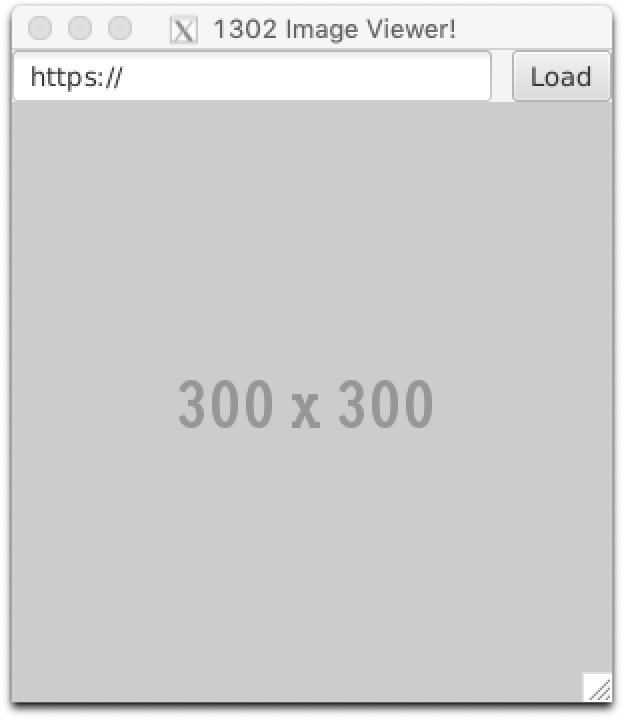
In your groups, draw the full containment hierarchy on your exit ticket.
You will need to use the following JavaFX classes:
Stage and Scene
javafx.stage.Stage The top level JavaFX container.
javafx.scene.Scene The container for all content in a scene graph.
Layout Panes
javafx.scene.layout.HBox Lays out its children in a single horizontal row.
javafx.scene.layout.VBox Lays out its children in a single vertical column.
Visual Components
javafx.scene.image.ImageView Represents a Node used to display an image loaded with the Image class.
javafx.scene.control.Button A simple button control.
javafx.scene.control.TextField Text input component.
Solution
Overall Containment Hierarchy: Includes the stage and the scene.
Fig. 62 Containment Hierarchy: Image Loader
Everything below Scene must be a Node to be
pictured in the scene graph. Each node corresponds to an
object of some class under the javafx package. The diagram
for the scene graph assumes that child nodes are added to
their parents in a left-to-right order. For example, the
HBox and ImageView objects are added to the
collection of child nodes for the VBox object in that
order.
Scene Graph: Only includes the components of the scene.
Fig. 63 Scene Graph: Image Loader
Live Demo: Writing the Code
We are now ready to write the code for our application.
Declare Instance Variables
The contents of the scene represent part of the state of your application. The variables that we use to refer to those objects should be instance variables of your class.
Solution
public class ImageApp extends Application {
    // Instance Variables
    VBox vbox;
    Scene scene;
    HBox urlLayer;
    Button button;
    TextField url;
    ImageView iv;

    // ...
} // ImageApp
Check Imports
Pull up the referenced bookmarks
The classes we need should already be imported. If you get "cannot find symbol" on a JavaFX class, double check your imports.
Write the Constructor
Remember: constructors are responsible for initializing instance variables!
Write the constructor to properly initialize all of the instance
variables in your ImageApp class.
For the ImageView component, use the constructor that takes
an Image reference. To create the image, you can use this
url: "https://webwork.cs.uga.edu/~csci-1302/gui/default.png".
Solution
One possible solution:
private static String DEF_IMG = "https://webwork.cs.uga.edu/~csci-1302/gui/default.png";

public ImageApp() {
    System.out.println("2) Creating an instance of the ImageApp Application");

    vbox = new VBox();
    urlLayer = new HBox();
    button = new Button("Load");
    url = new TextField("https://");
    Image def = new Image(DEF_IMG);
    iv = new ImageView(def);
} // ImageApp
Overriding the init Method
We will use the init method to connect all of our components
as seen in the scene graph (as seen below). Note the fact
that we left out the stage and the scene. We will connect
those later in start.
Fig. 64 Scene Graph: Image Loader
Solution
One possible solution:
@Override
public void init() {
    System.out.println("3) Executing the init method");

    urlLayer.getChildren().addAll(url, button);
    vbox.getChildren().addAll(urlLayer, iv);

} // init
Discussion
Where does the getChildren method come from? What does it return?
Look in the Button class API. Look at the parent classes.
Overriding the start Method
In start, we create a new Scene, set its root,
and put the scene on the stage.
With your groups, look through the existing start
method. Try to understand each line and how it
accomplishes our goals.
You will not need to change the code in start.
Run the Code!
We will not use stop in this example, so we can leave it
with a simple print statement.
With your groups, run the compile script. If there are any compilation errors, work together to resolve them. You should see a window that looks similar to our goal (below):
Ensure that your code passes checkstyle and then commit your changes using Git.
Congratulations on making a nice-looking JavaFX Application!
Part 3: Adding Functionality
Getting the Starter Code
Execute the command below to download and extract the files:
bundle1302 javafx-v2
- downloading cs1302-javafx-v2 bundle...
- verifying integrity of downloaded files using sha256sum...
- extracting downloaded archive...
- removing intermediate files...
subdirectory cs1302-javafx-v2 successfully created
Note: bundle1302
The command above is only available on Odin with the CSCI 1302 Shell Profile activated.
If you don't have the finished code from parts 1 and 2, you can download the code for parts 3 and 4 using the command above.
Discussion: Button
Look at the API documentation for Button. Near the top:
When a button is pressed and released a
ActionEventis sent. Your application can perform some action based on this event by implementing anEventHandlerto process the ActionEvent.
When a user clicks a
Button, an action event object is created;When JavaFX notices that an event is created, it executes event handlers based on where the event came from.
Different objects may create the same kind of event objects (e.g., different
Buttonobjects).To make all of this work nicely, you need to associate event handlers and objects.
Identify the type of
Eventan object creates.Create an
EventHandlerthat handles the event in whatever way you see fit.Associate the event handler with the object.
Creating an EventHandler
In the
initmethod of yourImageAppclass, declare a variable of typeEventHandler<ActionEvent>calledloadHandler.Using an anonymous class, assign to
loadHandleran implementation ofEventHandler<ActionEvent>that prints out the text of theTextFieldto standard output (the terminal).Create another
EventHandler<ActionEventvariable calledloadHandlerLambdaand assign it the same functionality, but this time, use a lambda expression.
Take special care that you import the correct
ActionEventclass, as a quick Internet search may recommend the wrong one! Consult the referenced bookmarks to determine the import statements that are needed.
Important
Creating the EventHandler<ActionEvent> object does not
connect that handler to the Button object in the scene
graph. Before your button will function properly, you will need to
set the handler to execute when the button is clicked.
Solution
Here are two different ways to associate the event handler with the button.
// general method to add event handler
loadButton.addEventHandler(ActionEvent.ACTION, loadHandler);
// specific method to add just event handlers for action events
loadButton.setOnActon(loadHandler);
Updating the Image
Once your app is able to print the text from the TextField to
standard output, amend the code so that it also creates an Image
object using the supplied URL, then sets the image property of
the ImageView using the appropriate setter method.
Here are some URLs to try when testing your program:


Solution
One possible solution:
@Override
public void init() {
    System.out.println("3) Executing the init method");

    urlLayer.getChildren().addAll(url, button);
    vbox.getChildren().addAll(urlLayer, iv);

    // Think of the event handler as the code that runs when the button is pressed.

    EventHandler<ActionEvent> loadHandlerLambda = (ActionEvent event) -> {

        Image img = new Image(url.getText());
        iv.setImage(img);
    };

    button.setOnAction(loadHandlerLambda);
} // init
Part 4: Optional: Error Handling
Input an invalid URL like "abcdefg" then catch the exception that's thrown. Read the stack trace that's printed for a hint on what to catch.
Add exception handling for invalid URLs.
One Approach
Leverage the URL(String) constructor, which throws a checked exception under various scenarios…
import java.io.IOException
import java.net.URL;
import javafx.scene.control.TextArea;
import javafx.scene.control.Alert;
import javafx.scene.control.Alert.AlertType;
try {
    ...
    Image image = new Image(...);
    if (image.isError()) {
        throw new IOExeption(image.getException());
    } // if
    ...
} catch (IOException|IllegalArgumentException e) {
    alertError(e);
} finally {
    // undo anything we might have changed
    // in the try
} // try
/**
 * Show a modal error alert based on {@code cause}.
 * @param cause a {@link java.lang.Throwable Throwable} that caused the alert
 */
public static void alertError(Throwable cause) {
    TextArea text = new TextArea(cause.toString());
    text.setEditable(false);
    Alert alert = new Alert(AlertType.ERROR);
    alert.getDialogPane().setContent(text);
    alert.setResizable(true);
    alert.showAndWait();
} // alertError